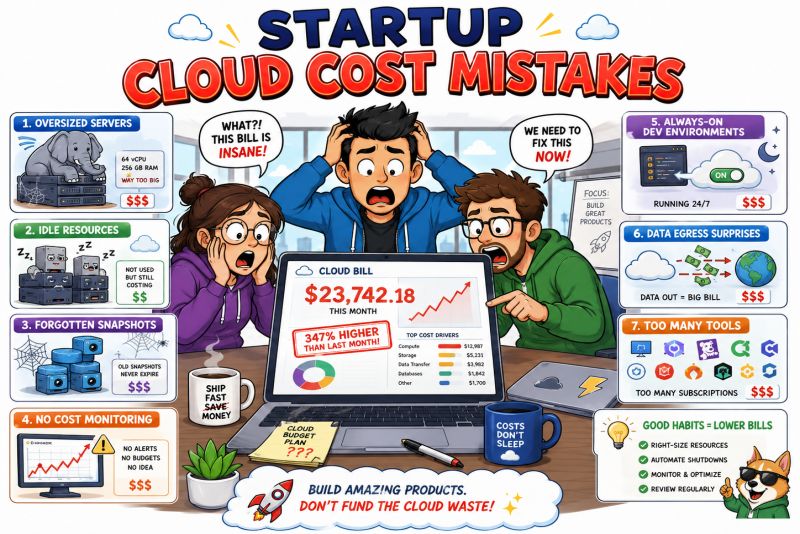
Your cloud bill started at $200 a month. Twelve months later it’s $8,000 and nobody on your team can explain why. The infrastructure that made sense when you had three engineers and 50 users now costs more than two full salaries, and the waste is baked into architecture decisions you made before you knew what product-market fit looked like.
Most pre-Series A startups discover cloud waste the same way: a CFO asks for a breakdown two months before a funding conversation, and the technical team realizes they’ve been paying for capacity they never used, environments nobody documented, and storage nobody deleted. This isn’t about optimization. It’s about the ownership and architecture mistakes that turn cloud spend from a variable cost into a structural leak.
Here’s exactly where startup cloud cost mistakes happen, what they cost you before anyone notices, and how to fix them before your next board meeting.
Nobody Owns the Bill Until It Hurts
The cloud invoice goes to the company card. Your technical co-founder glances at it once a quarter. Your first engineer has root access but no budget context. The founder who negotiated the AWS credits left four months ago. Nobody treats the cloud bill like a line item they personally own until it crosses a threshold that forces a conversation, and by then you’re explaining six months of spend nobody can reconstruct.
Ownership gaps don’t just delay action. They create the conditions for every other mistake on this list. When nobody wakes up thinking about the cost of the infrastructure they’re configuring, engineers optimize for speed and convenience. That’s the right trade-off early, but it becomes expensive the moment your burn rate matters and nobody’s job includes asking whether last month’s spend made sense.
The fix isn’t assigning blame. It’s assigning ownership before the bill becomes a problem. One person sees the invoice every month, knows what changed, and has the authority to ask why. That’s usually a technical co-founder pre-Series A, sometimes your first infrastructure hire if you have one. It doesn’t require a FinOps platform or a dedicated budget owner. It requires one name attached to the bill and a monthly answer to: what drove the increase, and did we mean to spend it?
You Built for Scale You Don’t Have Yet
You’re running database instances sized for 10,000 concurrent users. You have 300. Your Kubernetes cluster auto-scales to 12 nodes because someone set a threshold that made sense in a planning document, not production. The load balancer configuration assumes traffic spikes you haven’t seen since launch week. You built for the scale you’ll need after Series A, but you’re paying for it now.
What works at this stage:
- Right-size for actual peak load plus 30% headroom, not theoretical future load
- Provision for the traffic you have this month, not the growth deck you showed investors
- Run the cheapest instance type that handles your current workload without performance problems
What doesn’t work:
- Sizing infrastructure based on projected user growth that hasn’t happened yet
- Keeping production-grade redundancy and failover for pre-revenue workloads
- Provisioning for traffic spikes you’ve never actually measured
Over-provisioning feels like good engineering. It’s rarely questioned because it doesn’t break anything, it just costs too much. The gap between what you’re paying for and what you’re using grows every month until someone finally runs a utilization report and realizes you’re at 18% average CPU across instances that cost $4,000 a month.
Right-sizing isn’t about cutting corners. It’s about paying for the scale you have, not the scale you’re building toward.
RED FLAG: Your Staging Environment Costs 60% of Production
If your non-production environments cost more than half of what production costs, you’re paying for infrastructure that delivers zero user value. Staging and development should run on smaller instances, shut down outside work hours, and never match production specs unless you’re actively load testing.
Development and Production Run on the Same Credit Card
Your AWS account has no organizational structure. Every engineer spins up resources in the same environment. Development experiments sit next to production databases. Last quarter’s prototype API still runs because nobody’s sure if it’s still in use. You can see total spend, but you can’t see what you’re paying for development versus production versus that side project your lead engineer built during a hackathon.
Here’s how to split environments before your next invoice:
1. Create separate AWS accounts for production, staging, and development. Use AWS Organizations to link them under one billing account. This isn’t about security. It’s about making cost attribution possible. When everything runs in one account, you’re guessing what costs what.
2. Tag everything with environment and owner from day one. Every resource gets two tags minimum: which environment it belongs to, and which person or team owns it. Enforce this as a deployment rule, not a suggestion. Untagged resources should trigger alerts.
3. Set up development environments to shut down at night and on weekends. Use AWS Instance Scheduler or equivalent automation. If nobody’s writing code at 3 AM on Sunday, nothing should be running. This alone cuts development costs by 60 to 70% without changing anything engineers do during work hours.
The entire setup takes four hours if you do it properly. The cost visibility you get back makes every subsequent decision easier because you’ll finally know what you’re paying for production load versus infrastructure nobody’s using.
The Storage Bill Nobody Checked for Six Months
Compute costs are visible. Your team provisions instances, they show up on the bill, someone eventually notices. Storage costs grow silently. Database snapshots accumulate. Log files from six months ago sit in S3 because nobody set a deletion policy.
EBS volumes from terminated instances stay attached because the default is to preserve data. Your storage bill started at $80 a month and it’s now $2,400, and nobody on your team thought to check because storage feels cheap compared to compute.
Storage cost growth is the most predictable cloud waste vector for early-stage startups. It grows every month by default unless someone actively manages it, and most pre-Series A teams don’t assign anyone to manage it until the bill forces the conversation. Here’s what’s probably costing you right now:
- Database snapshots kept forever with no retention policy
- Application logs stored in S3 Standard instead of Infrequent Access or Glacier
- EBS volumes from old instances still attached and billed months after termination
- Development and staging databases backed up at the same frequency as production
- Old Docker images and build artifacts nobody’s deleted in eight months
You don’t need a storage optimization platform. You need a weekend afternoon and a clear deletion policy. Audit what you’re storing, set retention limits that match your actual recovery needs (30 days for most logs, 90 days for most backups), and lifecycle everything older than that to cheaper storage or deletion. Most startups cut storage costs by 50 to 70% the first time someone does this properly.
BUYER’S REALITY: Snapshot Retention Policies Cost More Than the Snapshots
Most backup tools default to keeping snapshots forever. After 12 months, you’re paying more to store old backups than you’re paying for the database itself. Set a retention policy before you turn on automated snapshots: 7 daily, 4 weekly, 12 monthly. Anything older than that gets deleted unless you have a compliance reason to keep it.
Auto-Scaling That Never Scales Down
You configured auto-scaling because that’s what you’re supposed to do. Your cluster scales up when load increases. The configuration works exactly as written. What you didn’t configure: the conditions under which it scales back down.
Your infrastructure grows to handle peak load, then stays there because the scale-down threshold is too conservative, the cooldown period is too long, or nobody set a minimum instance count that makes sense for off-peak hours.
Watch for these four signals that your auto-scaling configuration is costing you:
1. Minimum instance count hasn’t changed since launch. You set a minimum of 6 instances when you deployed. You still have 6 instances running at 4 AM on Tuesday when your traffic is 8% of peak. Minimum should track your actual baseline load, not your launch-week paranoia.
2. Scale-down takes longer than 30 minutes after load drops. If your system takes an hour to scale down after traffic returns to normal, you’re paying for capacity you don’t need for 23 hours a day. Tighten the cooldown period and lower the scale-down threshold.
3. CPU threshold for scaling down is under 20%. Conservative thresholds feel safe. They’re expensive. If you won’t scale down until average CPU is below 20%, you’re keeping instances running that are doing almost nothing. Raise it to 40% and monitor what breaks (nothing will).
4. Your instance count graph looks like stairs going up, flat lines going across. Pull your instance count graph for the last 30 days. If it scales up during load and stays there for days, your scale-down isn’t working. It should look like a heartbeat, not a staircase.
Auto-scaling is sold as automatic cost optimization. It only optimizes cost if scaling down works as reliably as scaling up, and most startup configurations are biased toward staying scaled up because nobody wants to be the engineer who caused a performance problem by scaling down too aggressively.
Reserved Instances Before Product-Market Fit
Your AWS account manager recommended reserved instances. The math makes sense: commit to a year, save 30 to 40% versus on-demand pricing. You’re definitely going to be running this workload for the next 12 months. The savings will help your burn rate. You sign the commitment.
Four months later your architecture changes. You migrate to containers and your instance type requirements shift. Or you pivot the product and your compute profile looks completely different. Or growth stalls and you’re paying for reserved capacity you’re not using while your on-demand costs dropped.
The commitment that was supposed to save money now sits on your invoice every month as a sunk cost you can’t adjust.
Reserved instances and savings plans are correct financial decisions when your workload is predictable and your architecture is stable. Most pre-Series A startups have neither. Your infrastructure is still shaped by experiments, pivots, and growth assumptions that haven’t been tested.
Committing to a year of fixed capacity before you know what product-market fit looks like trades optionality for savings, and optionality is worth more than 30% off when you’re pre-revenue.
The threshold that changes the math: consistent monthly cloud spend over $8,000 for three consecutive months with no architecture changes planned. Below that, the savings from reservations don’t justify the risk that your capacity needs will shift before the commitment ends. On-demand pricing costs more per hour, but it costs nothing to change direction.
RED FLAG: You Committed to Reservations in the Same Quarter You Changed Your Database
If you bought reserved instances or savings plans in the same quarter you migrated databases, re-architected your application, or changed your deployment model, you locked in pricing for infrastructure you’re about to stop using. Reserved commitments should follow architecture stability, not cause it.
When to Actually Start Caring About This
Most technical founders treat cloud cost optimization as premature before product-market fit. They’re half right. Optimizing for the last 10% of waste is premature. Fixing the structural mistakes that let waste grow unchecked is not, and the difference is whether you’re spending two hours a month on cost hygiene or two weeks every quarter explaining runaway spend to your board.
Here’s when cloud cost management stops being a distraction and starts being a funding requirement:
You should act now if:
- Monthly cloud spend is over $5,000 or 8% of total burn rate
- Your technical team can’t explain what drove last month’s bill increase
- Staging and development environments cost more than 30% of production
- You’re 6 to 9 months from Series A conversations and burn rate matters
- Your cloud bill grew more than 40% in a quarter when usage grew less than 20%
You can wait if:
- Monthly cloud spend is under $2,000 and stable
- Every engineer on your team knows what they provisioned last month
- You’re pre-revenue and still validating the core product
- Your funding runway is over 18 months regardless of cloud optimization
The goal before Series A isn’t perfect cost efficiency. It’s cost visibility and ownership. Investors will ask how you manage infrastructure spend. The wrong answer is “we haven’t looked at it yet.” The right answer is “one person owns it, we audit monthly, and here’s what we’re paying for.”
The 48-Hour Cloud Cost Audit
You don’t need a FinOps platform to find the biggest leaks in your cloud bill. You need four hours across two days and access to your cloud provider’s cost explorer. This audit surfaces the waste that’s costing you real money right now, not the micro-optimizations that save $40 a month.
Step 1: Pull a cost breakdown by service for the last 90 days. Open your cloud provider’s billing dashboard and group costs by service (EC2, RDS, S3, etc.). You’re looking for the top three services by total spend. That’s where 70 to 80% of your waste lives.
Step 2: Within your top service, break down by resource tag or instance ID. If compute is your biggest cost, list every instance and what it’s doing. If storage is biggest, list every bucket and database. You’re building a map of what you’re actually paying for, not what you think you deployed.
Step 3: Identify resources with no owner tag or no activity in 30 days. Anything running without an owner is a candidate for shutdown. Anything with zero activity in the last month is probably waste. Flag them, verify with your team, and terminate or archive.
Step 4: Check your storage retention policies and snapshot schedules. Pull your S3 lifecycle policies and database backup retention settings. If anything is set to keep data forever, set a retention limit. 90 days for backups, 30 days for logs, unless you have a compliance reason to keep it longer.
Step 5: Review auto-scaling configs and check if scale-down is working. Pull your instance count graph for the last two weeks. If it scales up but doesn’t come back down, your configuration is broken. Adjust the scale-down threshold and cooldown period.
| Step | What You Are Actually Doing | Where This Goes Wrong |
|---|---|---|
| Pull 90-day cost breakdown | Identifying your top three cost centers | Stopping at the summary view without drilling into resource-level detail |
| Tag and map every resource | Building accountability for what’s running | Skipping untagged resources because nobody knows what they are |
| Flag idle and unowned resources | Surfacing waste that can be terminated this week | Assuming everything running is necessary without verifying activity |
| Set storage retention policies | Capping growth on snapshots and logs | Setting retention too short and losing data you actually need |
| Verify scale-down is working | Making sure auto-scaling saves money in both directions | Leaving scale-down thresholds too conservative and paying for idle capacity |
The step most teams skip: tagging and mapping what’s actually running. Without that map, you’re guessing what you can safely shut down. With it, the entire audit takes four hours and cuts your bill by 20 to 40% in the first month. The biggest mistakes aren’t configuration tweaks. They’re resources running that nobody remembers provisioning and nobody verified are still needed.
Conclusion
Startup cloud cost mistakes aren’t about missing a discount or picking the wrong instance type. They’re about building infrastructure with no ownership, no visibility, and no forcing function to ask whether what you provisioned last quarter still makes sense this quarter. If your monthly cloud bill is over $5,000 and nobody on your team looked at it last month, start with the 48-hour audit. If it’s under $5,000 and growing, assign an owner now before it becomes a board-level question.
Pull your last three invoices, map your top five cost centers, and verify someone can explain what you’re paying for before your next funding conversation.
Also read: FinOps Framework